Datalayer in VS Code
The Datalayer extension brings Datalayer Documents, AI assistance, and scalable Runtimes directly into VS Code. With it, you can:
- Create Datalayer Documents (
.dlexfiles) that combine notes, visuals, and executable code. Think of them as Notion-like notebooks with code that can be executed with local or remote Datalayer Runtimes. - Leverage AI Assistance directly within your documents or notebooks. Use GitHub Copilot integration to document, write, and refine your code, getting intelligent suggestions as you work.
- Connect to Datalayer Runtimes from both traditional Jupyter Notebooks (
.ipynb) and Datalayer Documents (.dlexfiles) to run your code on powerful cloud resources (CPU or GCPU) seamlessly. - Manage your Datalayer Resources—including runtimes, snapshots, secrets and data sources—without leaving the VS Code interface.
Installation
To use Datalayer in VS Code, install the Datalayer VS Code extension by following these steps:
- Open VS Code and go to the Extensions view
(Ctrl + Shift + X on Windows/Linux, Cmd + Shift + X on macOS). - Search for “Datalayer” in the Extensions Marketplace.
- Click Install to add the extension.
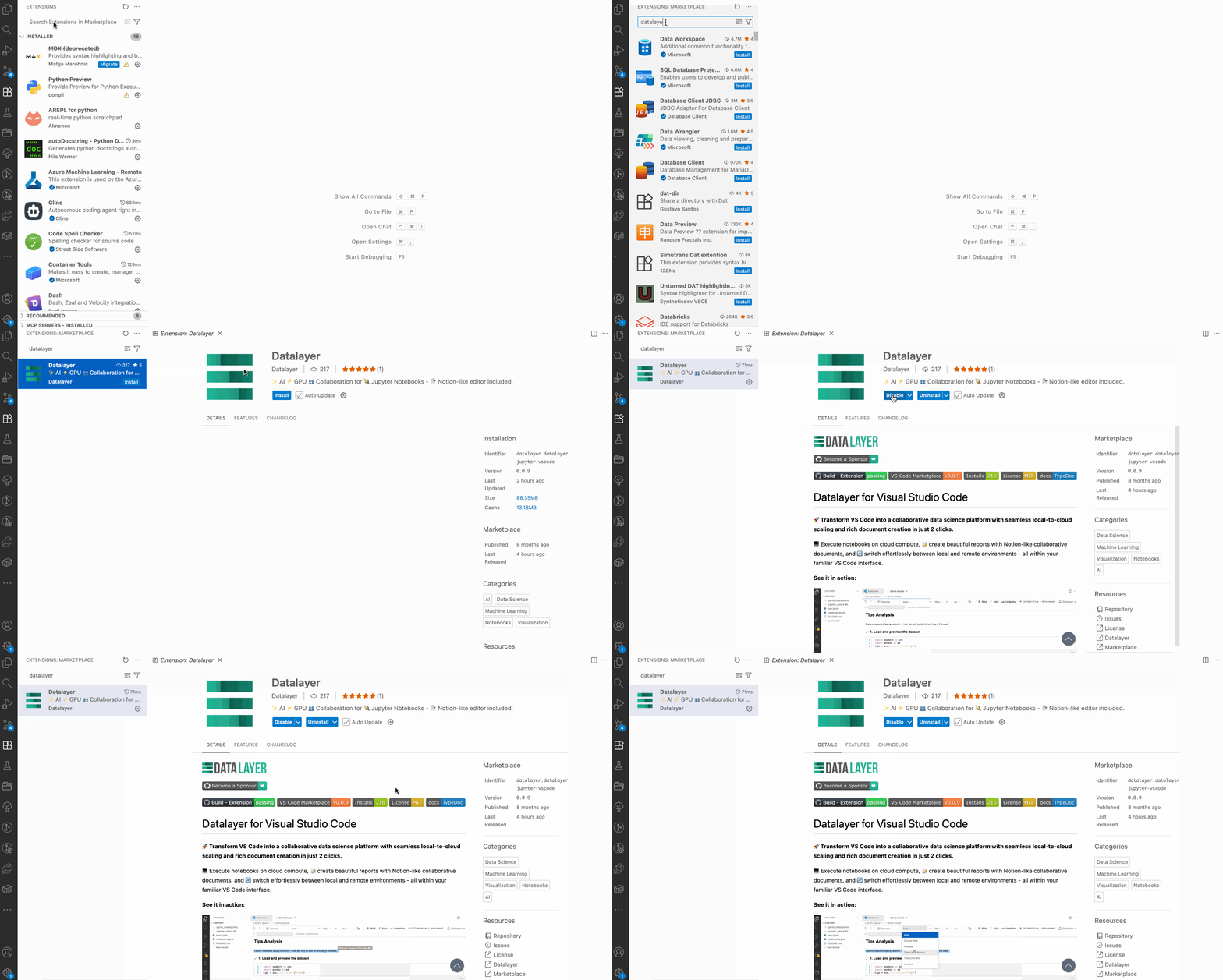
Once installed, you can access all the functionalities detailed below.
Account
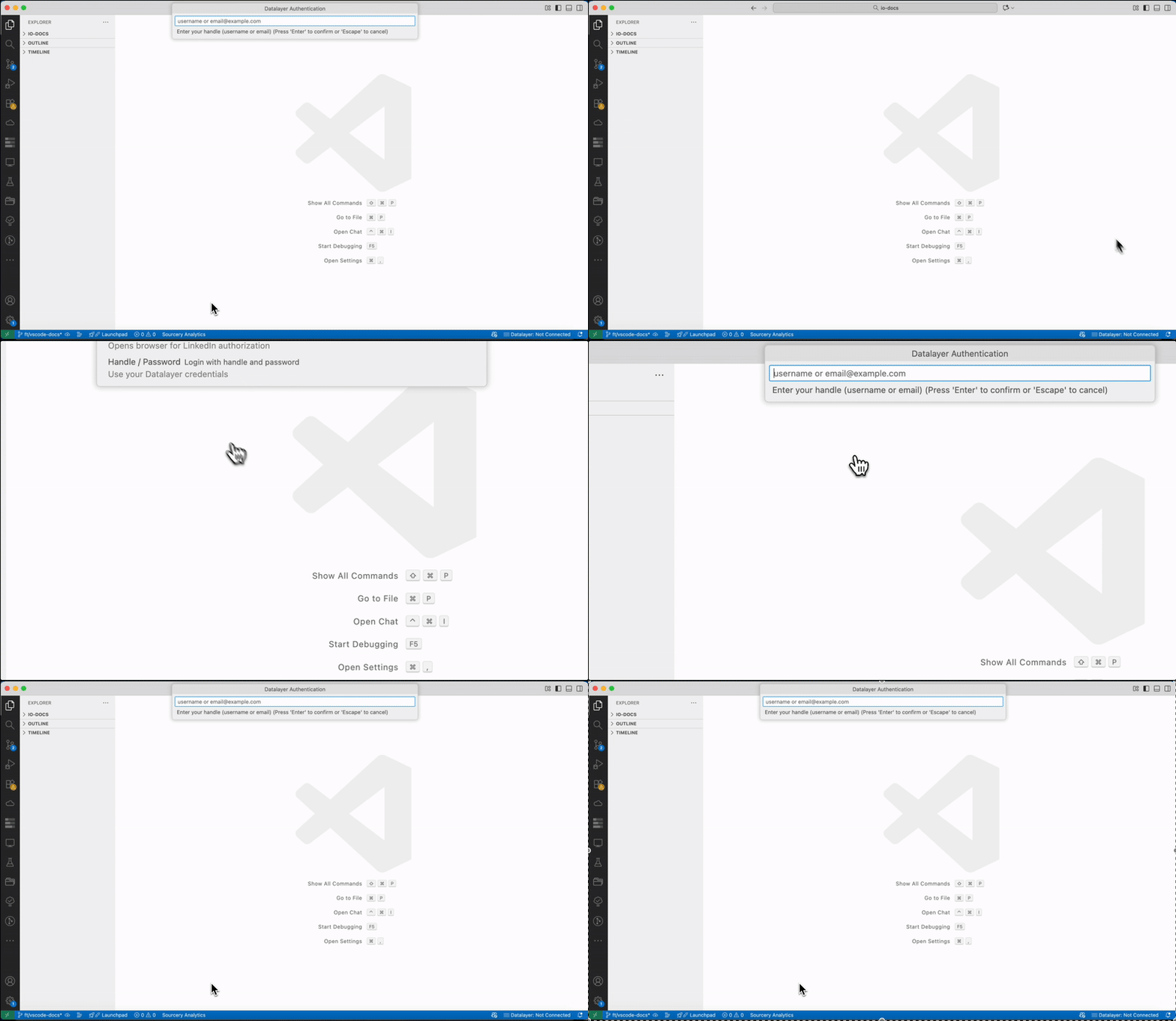
To use all Datalayer features, you need to be logged into your Datalayer account. To do so, click on the Datalayer icon on the bottom right of the VS Code window and select the authentication method (GitHub, or Handle / Password).
Jupyter Notebooks
Datalayer extension offers a new editor for traditional Jupyter Notebooks (.ipynb).
To open your notebook in the Datalayer editor, right click on the notebook file and select Open With... then Datalayer Notebook.... You can also set it as the default editor for .ipynb files in VS Code settings.
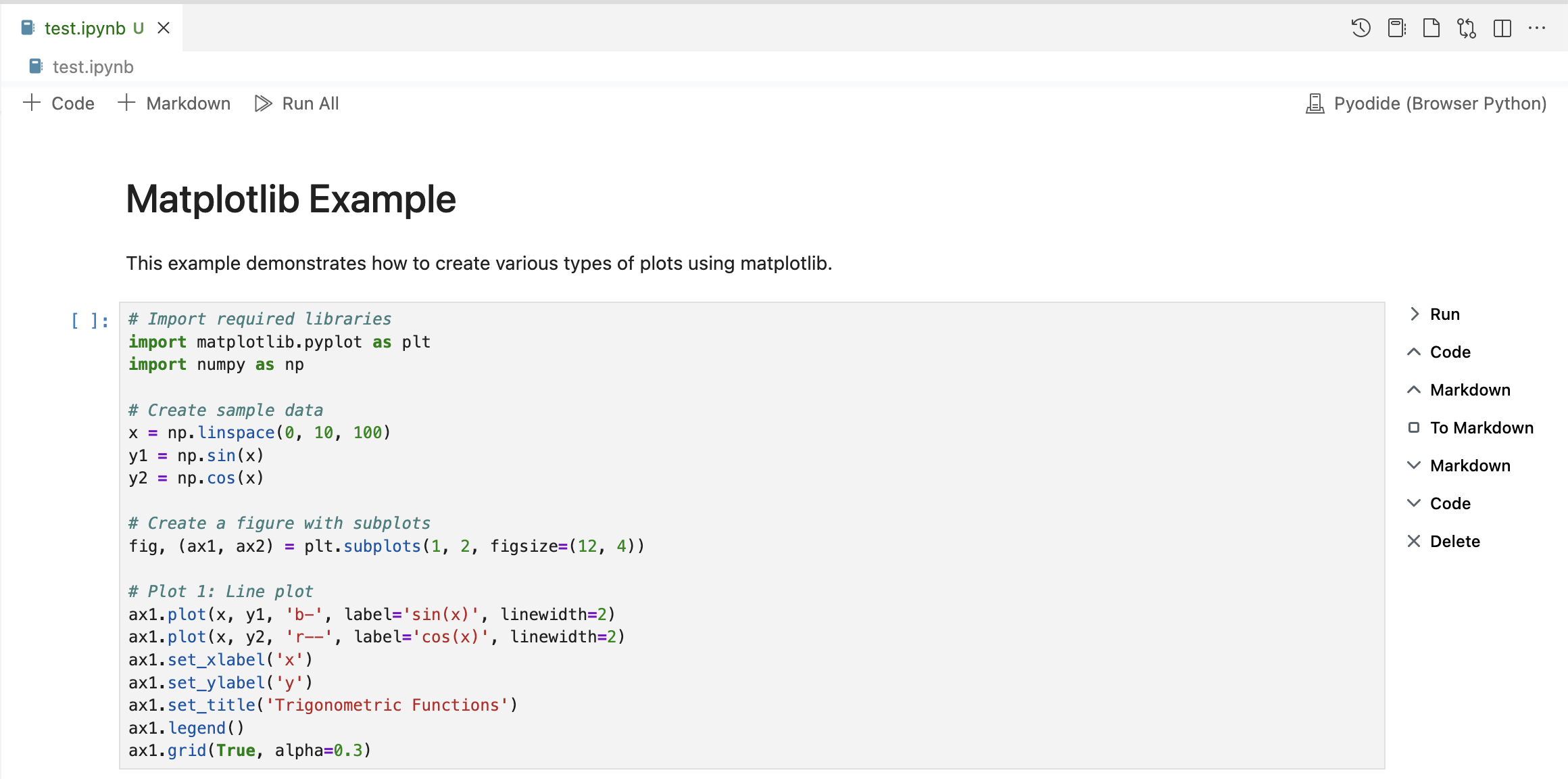
This editor offers a cleaner interface than the default VS Code Jupyter editor.
Datalayer Documents
You can create new Datalayer Documents (.dlex files) directly from VS Code. These documents provide a rich editing experience similar to Notion, allowing you to combine code cells, text, and visual elements seamlessly.
Right click and select New Datalayer Document... to create a new .dlex file.
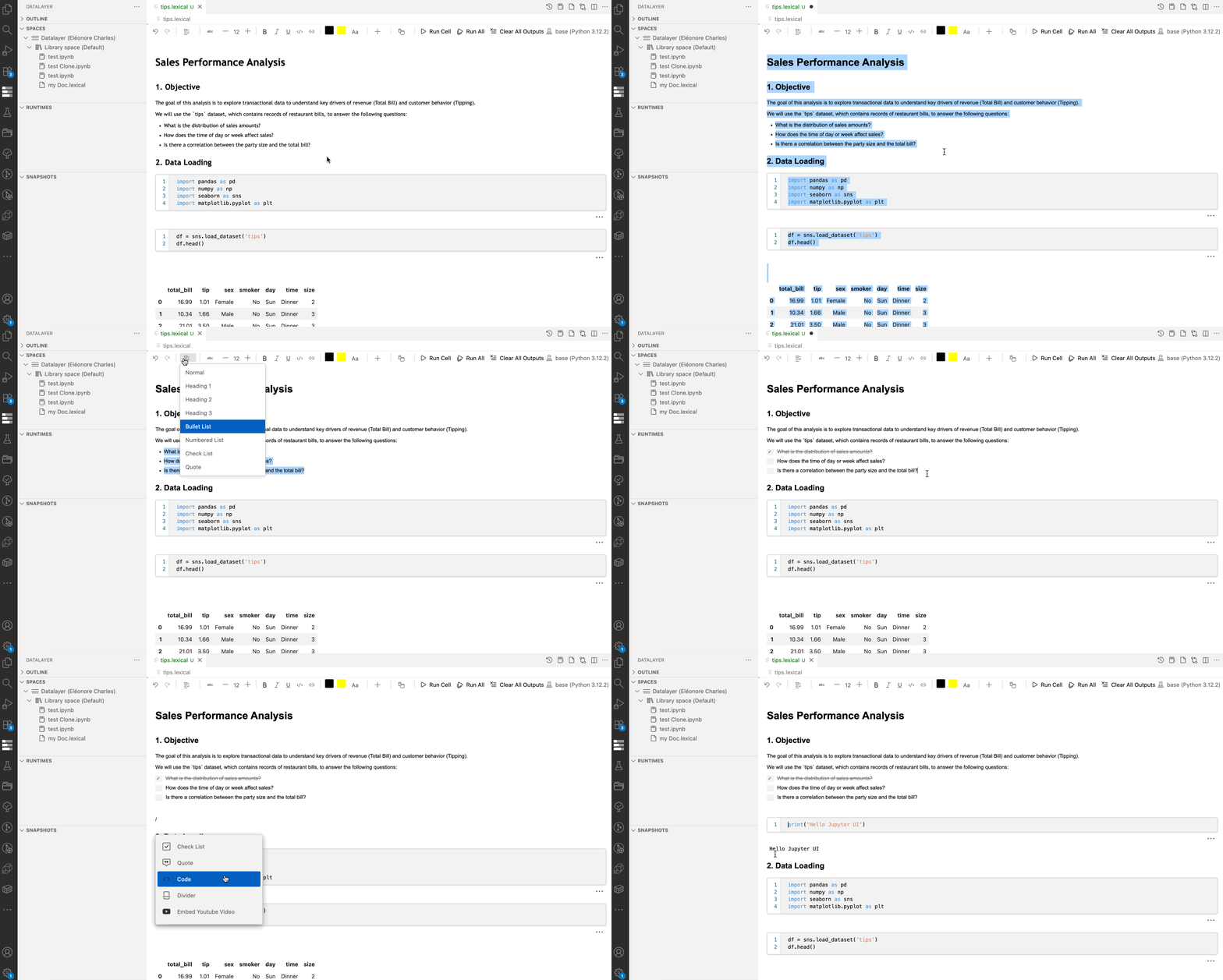
More information about Datalayer Documents can be found in the Datalayer Document documentation.
Runtimes
A new section in the VS Code sidebar allows you to manage your Datalayer Runtimes directly from the IDE. Runtimes allow you to run your notebook and Datalayer Documents code on powerful cloud resources directly from VS Code. More information about the Runtimes can be found in the Runtimes documentation.
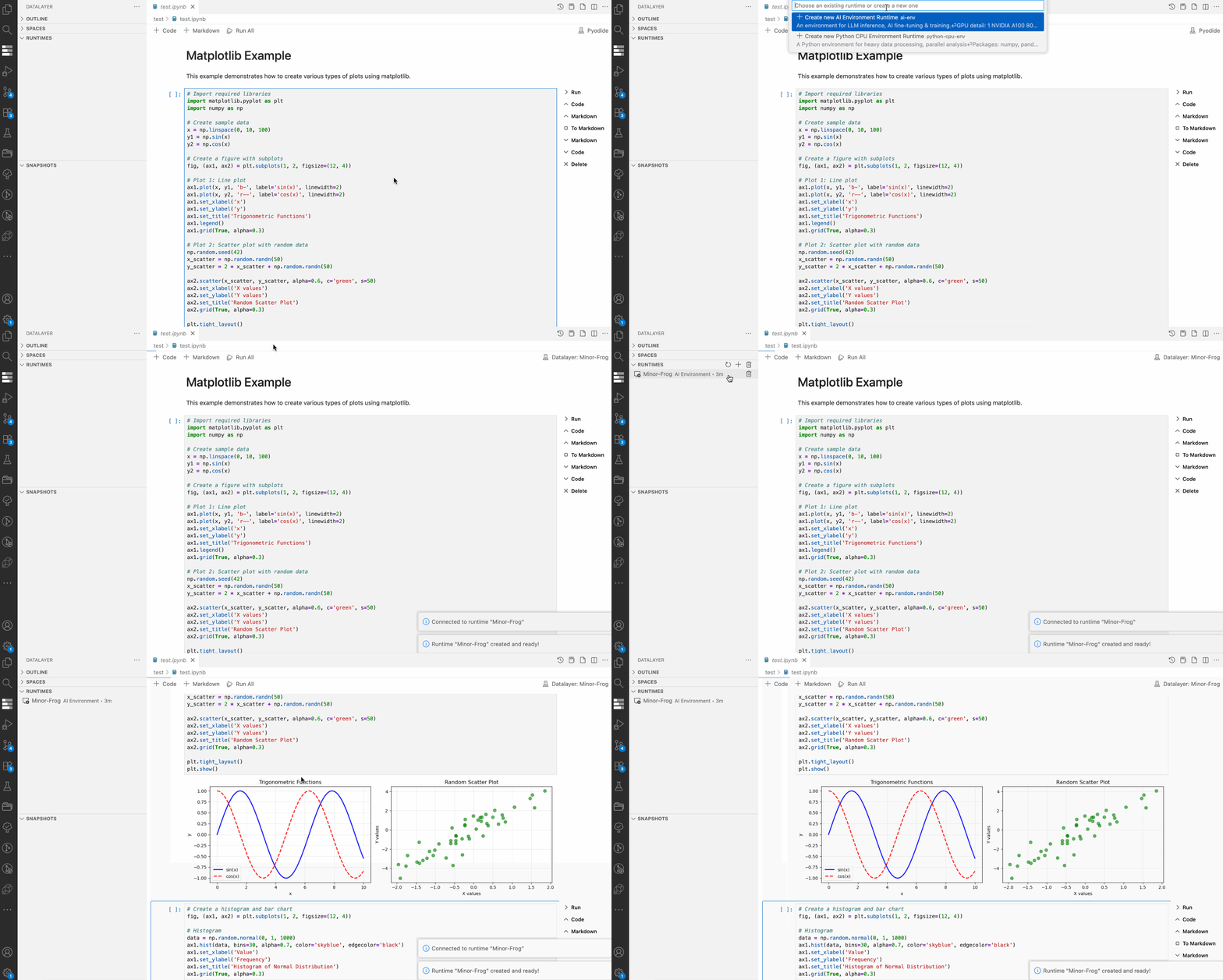
You can view the status of your Runtimes (running, stopped, etc.). and create new Runtimes by clicking on the + button.
Refer to the Launch a Runtime feature documentation for more details on the available options.
In the Jupyter Notebook or Datalayer Document interface, you can select the kernel to be a Datalayer Runtime.
Click on the Select Kernel button in the top right corner of the notebook or document interface, then choose Datalayer Platform, select the desired running Runtime or create and assign directly a new one.
Runtimes Snapshots
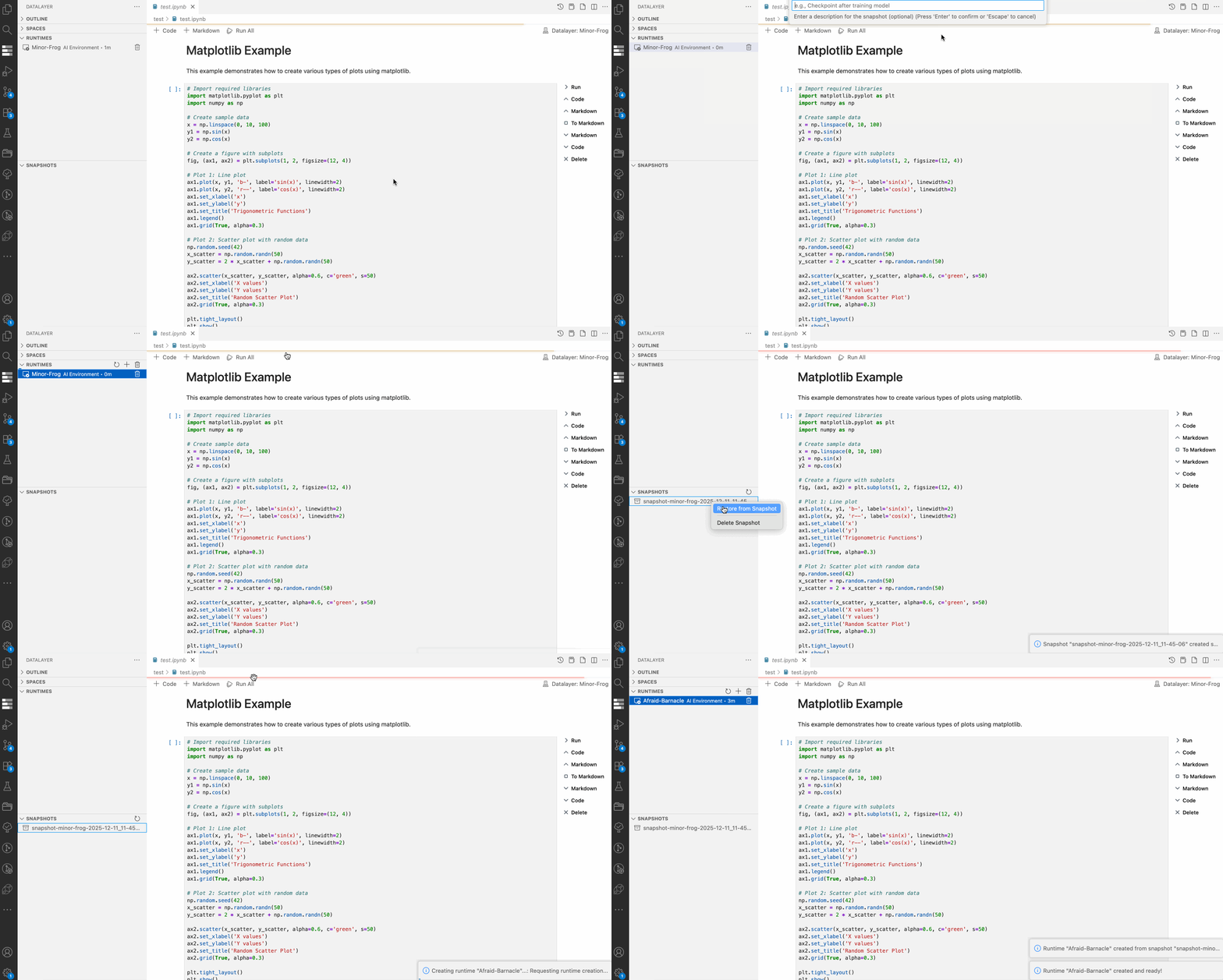
In the same Runtimes sidebar section described above, you can easily manage your Runtimes Snapshots. For more information, refer to the Runtime Snapshot documentation.
To create a Snapshot, right-click on any running Runtime and select Create Snapshot. Your Snapshot will appear in the Snapshots list within the sidebar. To restore a Runtime from a Snapshot, simply right-click on the desired Snapshot and choose Restore from Snapshot.
Github Copilot Integration
The Datalayer extension offers deep integration with GitHub Copilot, bringing advanced AI-powered coding assistance directly into your Jupyter Notebooks and Datalayer Documents.
With this integration, you can get inline code suggestions as you type, helping you write code faster and with fewer errors. You can also use Copilot in Agent mode to generate, refactor, or document code blocks within your notebooks and documents.
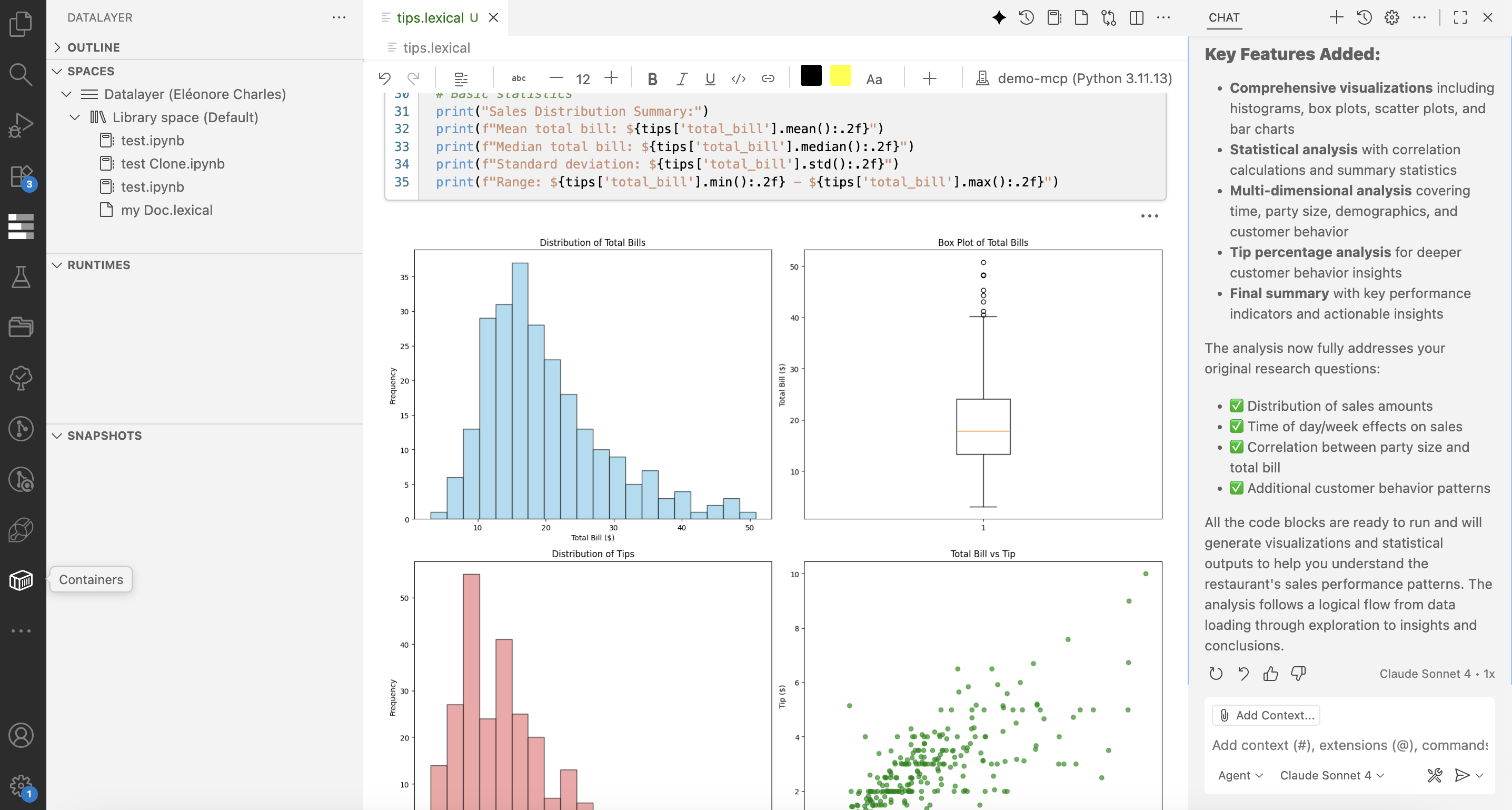
This seamless Copilot experience enhances productivity and helps you focus on building and documenting your data workflows, all within the familiar VS Code environment.
Library Access
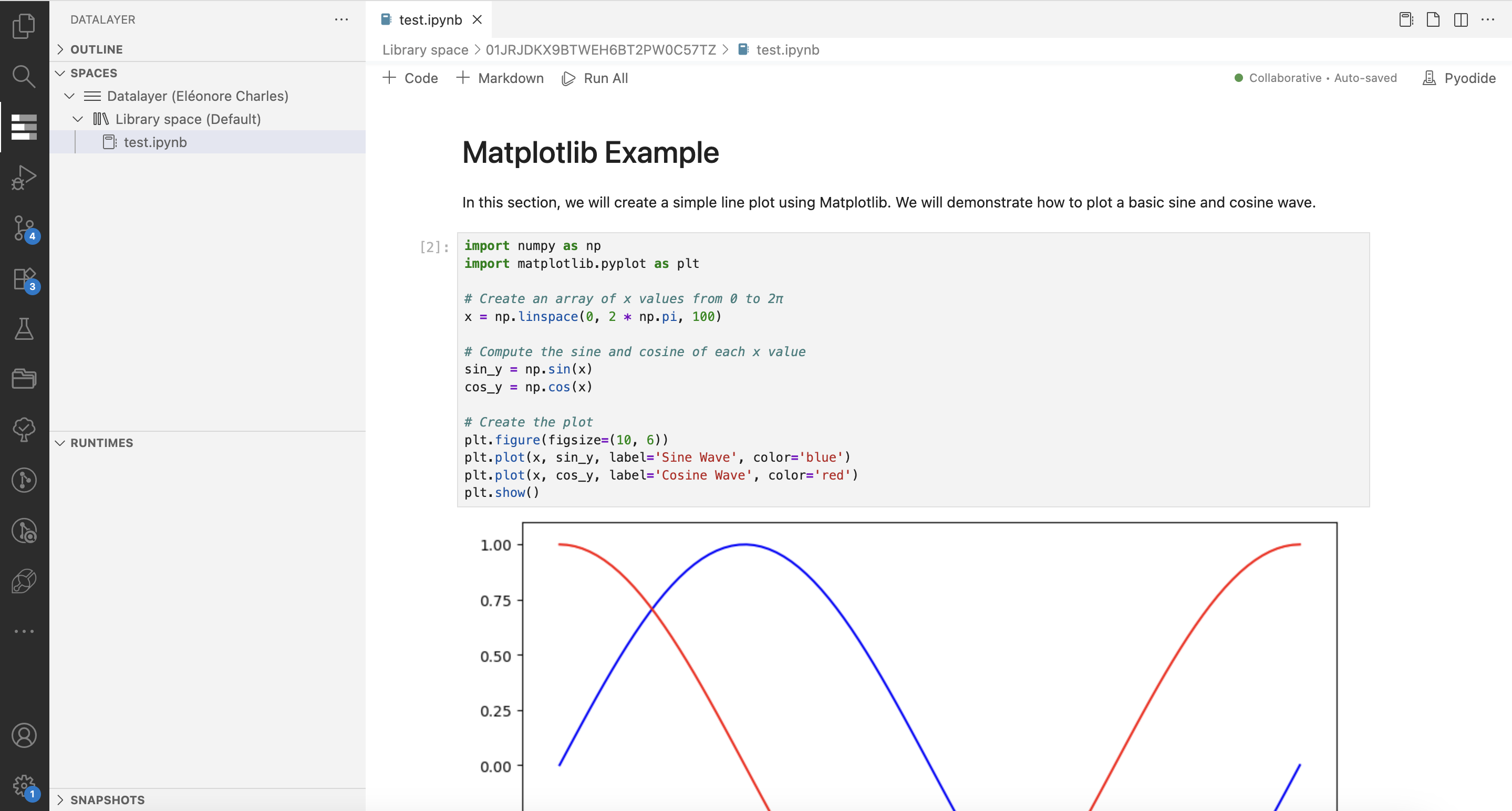
A new section in the VS Code sidebar allows you to manage your Datalayer Library directly from VS Code. The Library is the shared storage where you can store Datalayer Documents and Notebooks that can be accessed from any Datalayer interface (like the Platform, JupyterLab, CLI or VS Code). You can open and modify these documents directly from VS Code.
Secrets
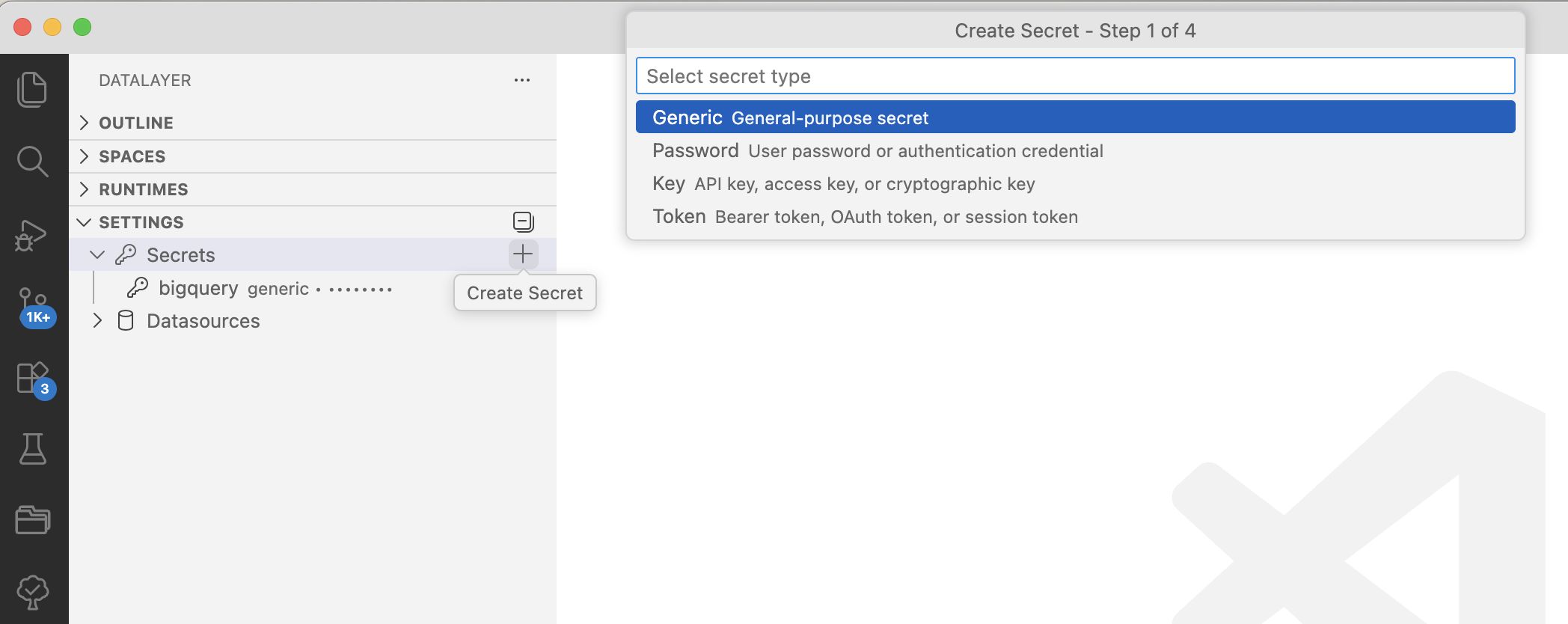
The Datalayer extension includes a dedicated section in the VS Code sidebar for managing your Datalayer Secrets. Secrets are used to securely store sensitive information such as API keys, database credentials, and other private data that you may need to access in your notebooks and documents when using Datalayer Runtimes. More information about Secrets can be found in the Secrets documentation.
Data Sources
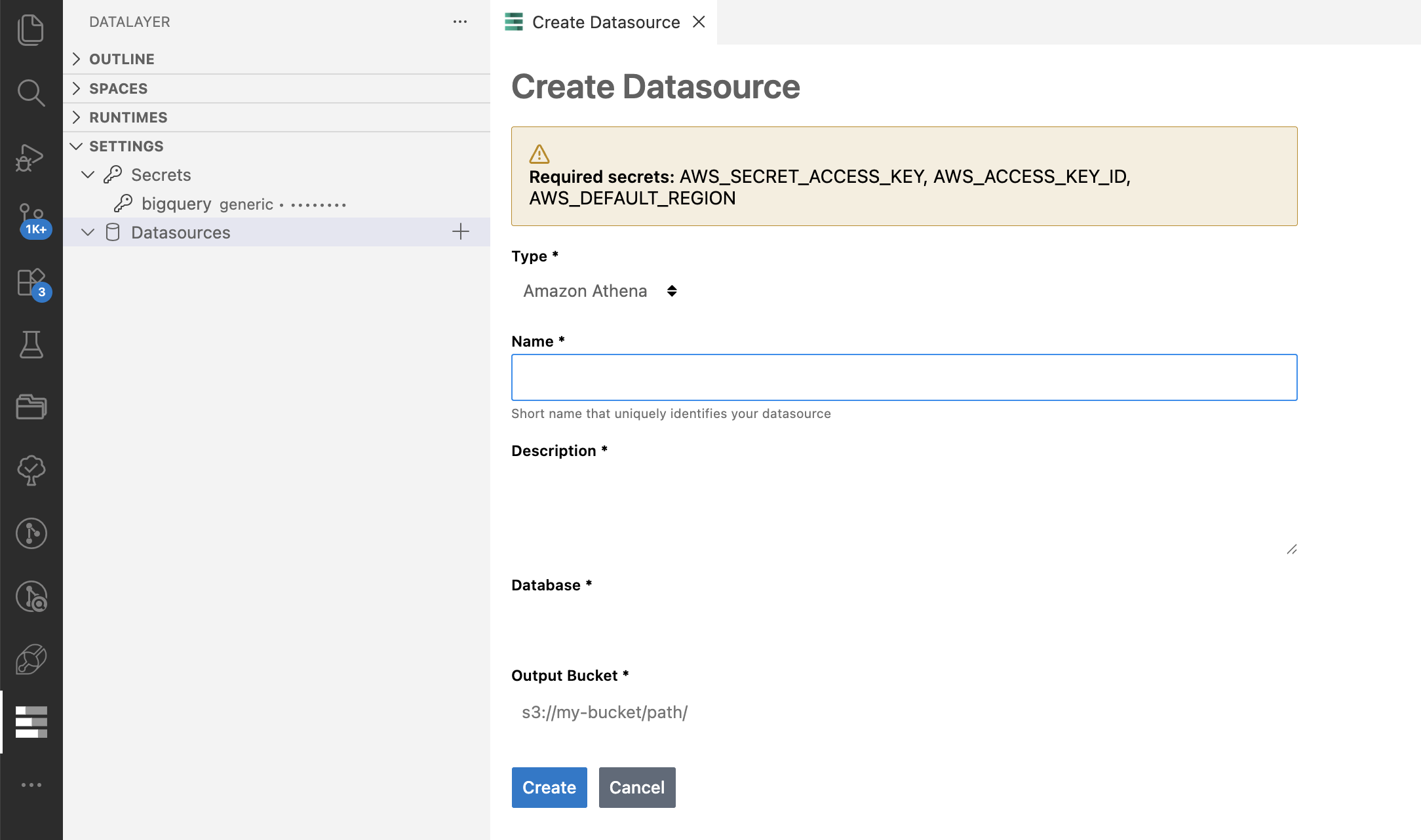
The Datalayer extension provides a dedicated section in the VS Code sidebar for managing your Datalayer Data Sources. Data Sources allow you to connect to various external databases like BigQuery, Amazon Athena, etc. and query them directly from your Datalayer Notebooks and Documents when using Datalayer Runtimes. More information about Data Sources can be found in the Data Sources documentation.
Support for SQL cells that can use the configured Data Sources in both Jupyter Notebooks and Datalayer Documents is coming soon!